New user quick start guide (AP)
This guide was created to help someone new to the Tipalti software navigate the basics of the platform with ease. It details the basic functions of the AP process, enabling you to perform step-by-step processes with minimal ramp-up time.
Before you explore the basic functions of the AP process, take some time to watch the following video to learn how to navigate the Tipalti Hub.
Your user permissions determine which tabs and pages display in the Tipalti Hub, as well as the kind of information that is visible and which actions you can do.
Tipalti basics
Upon logging into the Tipalti Tipalti Hub, you see various tabs and subtabs based on your user permissions and role within your company's AP process. This guide focuses on the general AP user role and not the Administrative level.
The following view is permission based, so you may not see all the various pages and tabs listed. Throughout this guide, whenever possible, the required Tipalti user roles for the various functions are identified at the beginning of that section.
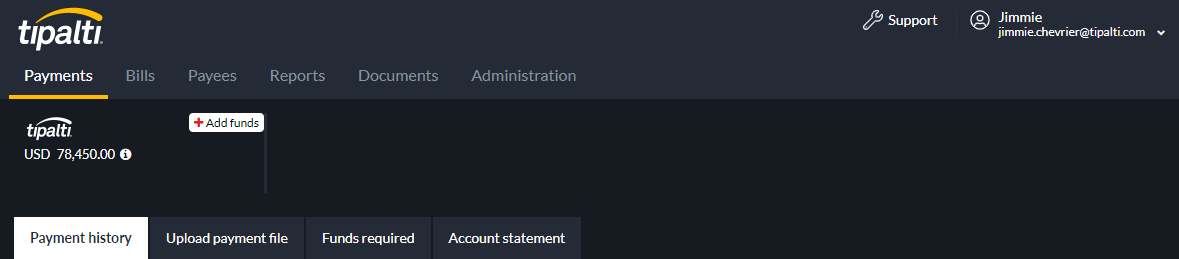
While the majority of the focus of this document will be within the "Bills" tab and subtabs, it is good to understand the basics of each bill screen. The "Bills" tab displays to users assigned the View Bills role in Tipalti.
- Pending review displays all the bills that have been added to Tipalti that require review before being submitted for approval.
- Pending my approval displays bills that have been reviewed and are awaiting internal approval by the person to whom the bills have been assigned. You need the Bill Approver role to see this subtab to review and approve bills, and send bills back to AP to be updated.
- Pending AP action is used by the AP Team to review and revise bills that have been sent back to AP for various reasons.
- Pending payment allows you to schedule bills for payment runs or pay partial amounts. You need the Process Bills and Submit Payment roles to schedule bills.
- All bills displays bills in any status. Therefore, you can perform any action from this screen, as long as the bill status supports the action. Additionally, bills loaded using Tipalti's AI Smart Scan AI Smart Scan is a tool that reads scanned invoice images or PDFs and extracts the details, which are used to populate the fields on a bill. and Managed Services options display a "Pending Scan" status during the load process. Bills can be pulled out of the AI Artificial Intelligence Smart Scan/ Managed Services process from this subtab, if urgent. Once fully loaded, the bills display on the "Pending review" subtab.
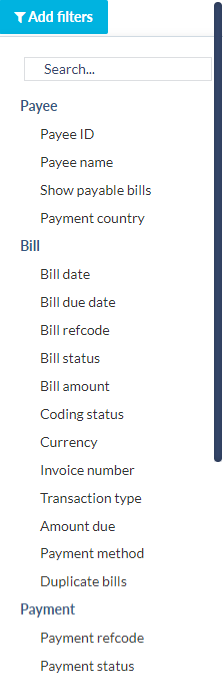
On any bills subtab, you can use "Add filters" to focus on a subset of bills. You can filter by payee, bill and payment information, and line level custom fields, including information that may not be readily visible in the bill list you are currently viewing.
The "Payees" tab, which is a record of payee information, allows a user with the role of View Payees to manage suppliers.

Getting started process
 Step 1. Add a payee
Required user roles View Payees & Add Payee
Add new payees to the Tipalti Hub to create a payee profile including a unique ID, contact information, and payment details. When adding a payee, you can send an email invitation for the payee to register in the Supplier Hub. If the payee does not register right away, reminders are sent periodically over the next month. After five auto-reminders, the system stops sending reminders. If the payee still hasn't begun the registration process, you can send another invite.
- On the "Payees" tab, click "+ Add payee".
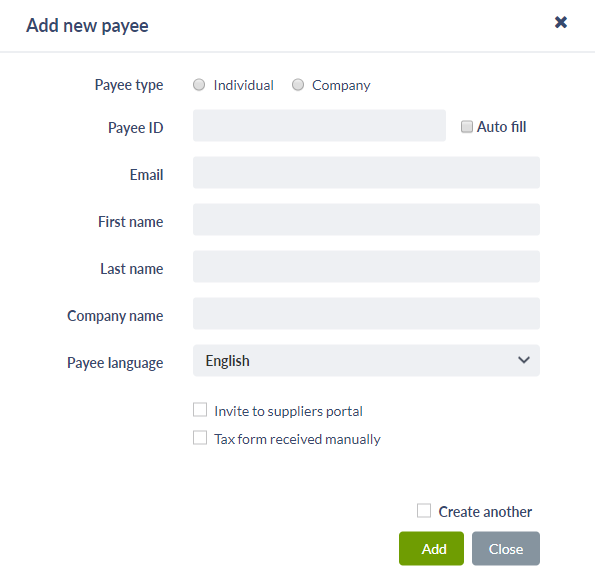
- Enter the payee's information (all fields in bold are required):
- Payee type – Use the radio button to designate whether the payee is an "Individual" or a "Company".
- Payee ID – Create a unique ID for this payee and enter it into the text field, or select the "Auto fill" check box to the right of the field and the system will automatically assign a unique ID to this payee.
- Email – Enter the main contact email for this payee, which is the email to which all Supplier Hub invites will be sent.
- First name – First name of the payee.
- Last name – Last name of the payee.
- Company name – This field only appears (and is required) if you chose "Company" as the "Payee type" at the top of the form.
- Payee language – English is the default language. The designated language is used in email communications coming from the system including registration invitations to the Supplier Hub.
- "Invite to suppliers portal" check box – By selecting this check box, an email is sent automatically to the payee's email inviting the payee to register in the Supplier Hub.
- Tax form received manually – If the payee has submitted the tax form directly to you (instead of completing the tax form via the Supplier Hub), you can select this check box confirming the receipt of those forms.
- "Create another" check box – Select this check box if you have more payees to add so that a new payee dialog displays for you to complete.
- Click "Add".

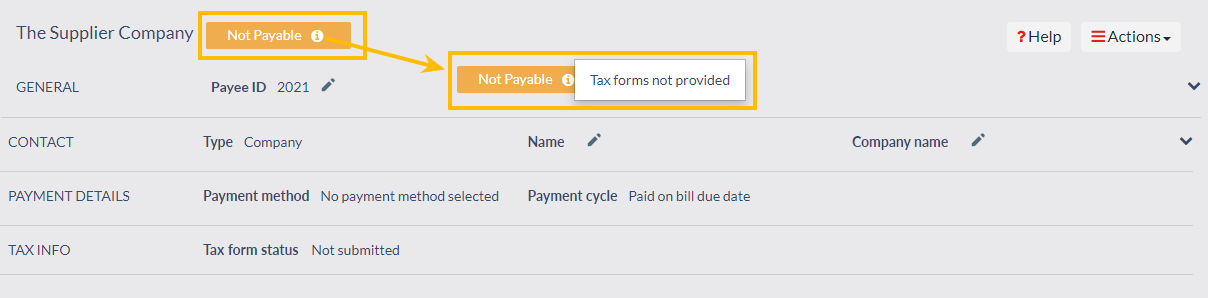
On the "Payees" tab, the payee status displays as either "Payable", meaning they will be able to receive payment, or "Not Payable". If the status is "Not Payable", you can see the various reasons why by hovering over the information tooltip. For a complete list and descriptions of all the reasons why a payee might have the "Not Payable" status, see Unpayable reasons in Tipalti's online help.
Step 2. Log in as a payee
Required user roles View Payees & Update Payee Payment Details
If the payee has not yet registered with the Supplier Hub, you may log into the portal as the payee and manage the account on the payee's behalf.
If the payee has already registered in the Supplier Hub, the Payee Payment Details Administrator role is required to do any of the following actions.
The following video shows you how to log in as the payee in the Tipalti Hub.
Follow the steps below to learn how to log in as a payee in the Tipalti Hub.
- On the "Payees" tab, enter the name or Payee ID into the search bar to load the payee's details.
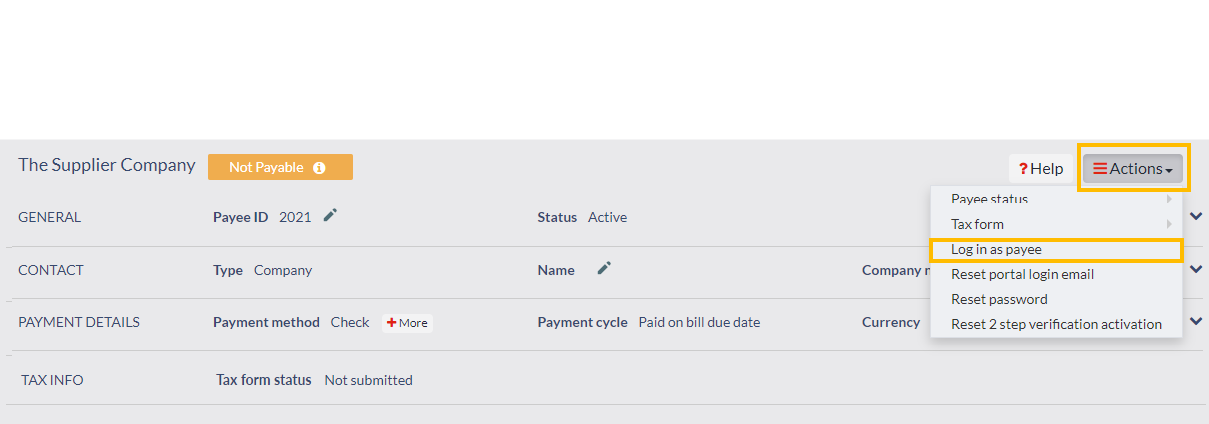
- Click "Actions" and select "Log in as payee".
- In the Supplier Hub,
- Enter the payee contact information (all fields in bold are required):
- Type – Select whether the payee is an "Individual" or "Company".
- Contact Email – Enter the main contact email for this payee.
- Phone Number – Contact phone number (including country code) of individual or company.
- First Name – First name of the payee.
- Middle Name – Middle name of the payee.
- Last Name – Last name of the payee.
- Company name – This field only appears (and is required) if you chose "Company" as the "Payee Type" at the top of the form.
- Address/ Address 2/ City/ Zip – The address of the individual or company.
- Country – Choose the payee country from the dropdown, which determines the payment methods available to the payee on the "Payment Method" page of the Supplier Hub.
- State – Select the state abbreviation from the dropdown list (US only).
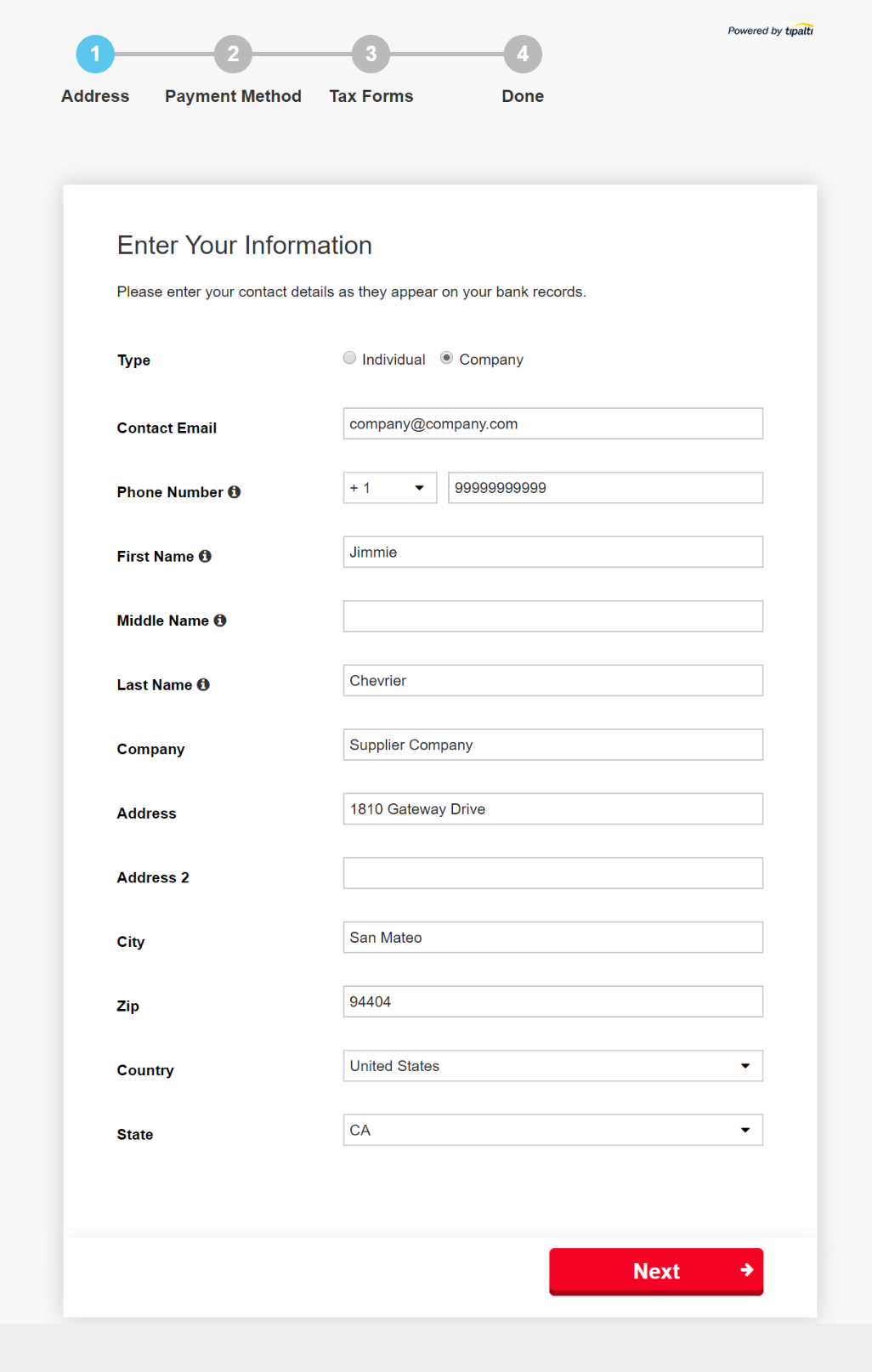
- Click the "Next" button to move to the "Payment Method" page.
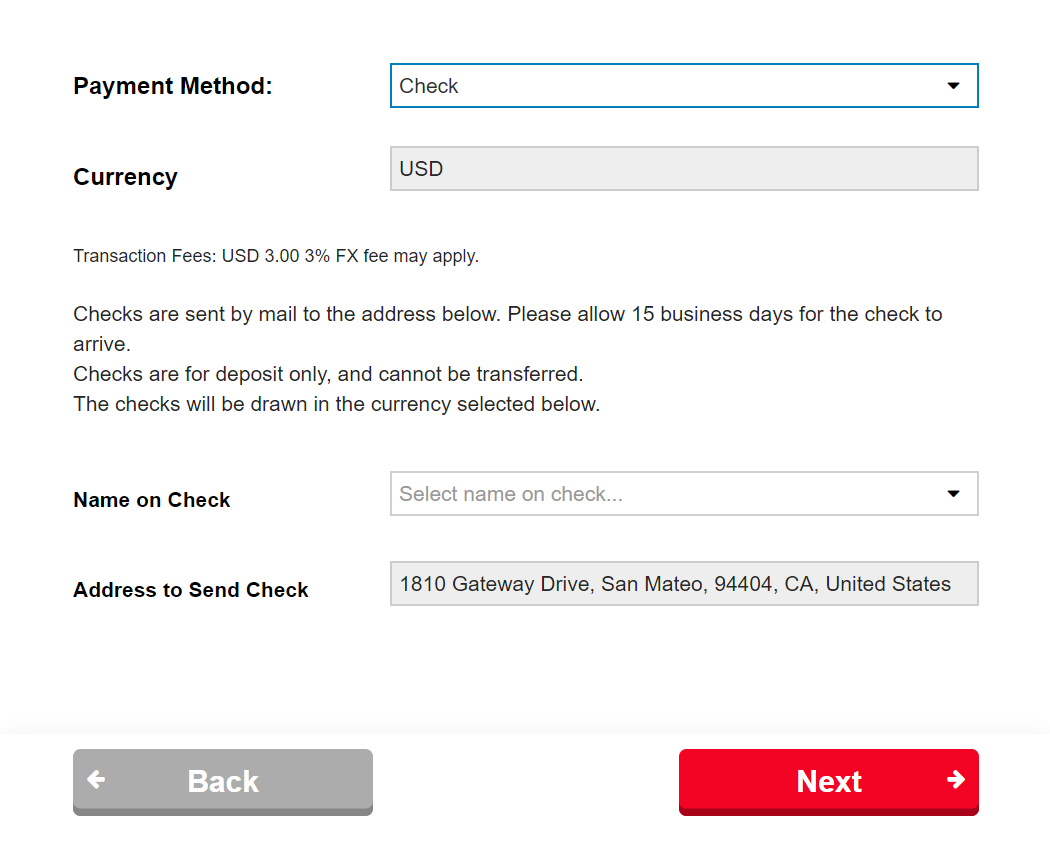
- Complete the payment information by selecting the appropriate type of payment from the "Payment Method" dropdown and filling in the corresponding information. Click "Next".
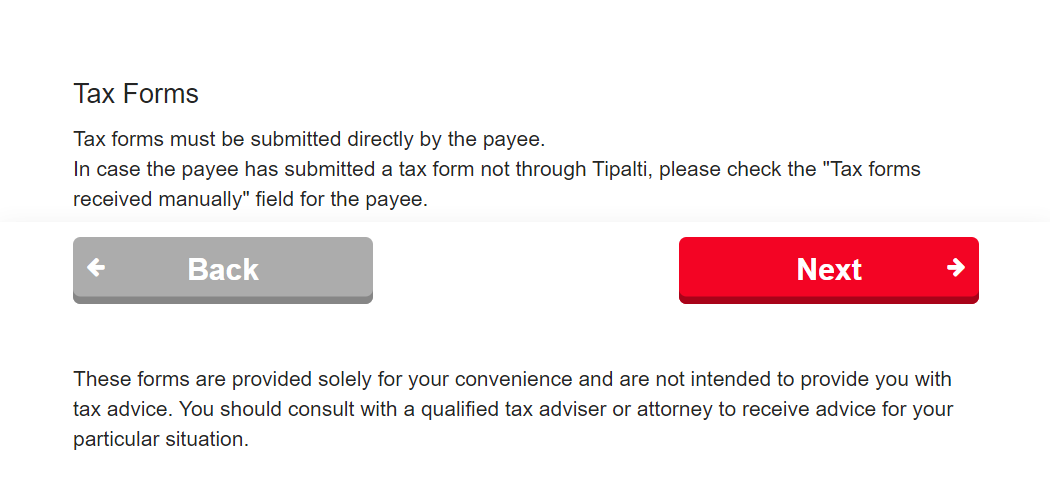
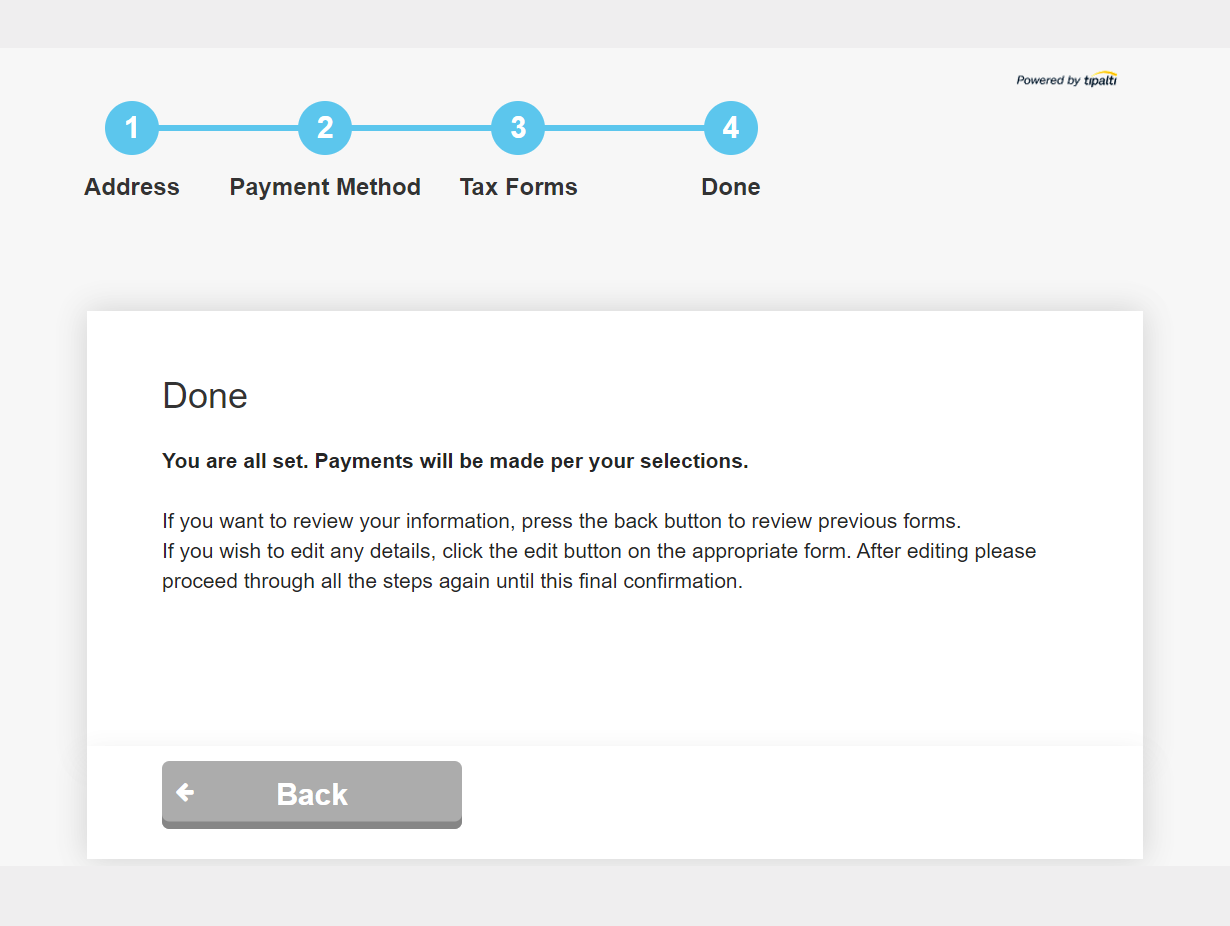
- On the "Tax Forms" page, you cannot fill in any tax information on the payee's behalf. To collect payee tax information, the payee has to submit the tax form to you outside of Tipalti. You can then mark the payee record as "Tax form received manually" in the last step in this process. At this point, click the "Next" button to see confirmation of completion.
This step only applies if the Taxation module enabled.
- Enter the payee contact information (all fields in bold are required):
- If you need to edit information on any of the prior pages, click "< Back". Otherwise, close the Supplier Hub and return to the Tipalti Hub.
- In Tipalti's Tipalti Hub, you now need to confirm the receipt of the payee's tax documents.
- Find the relevant payee.
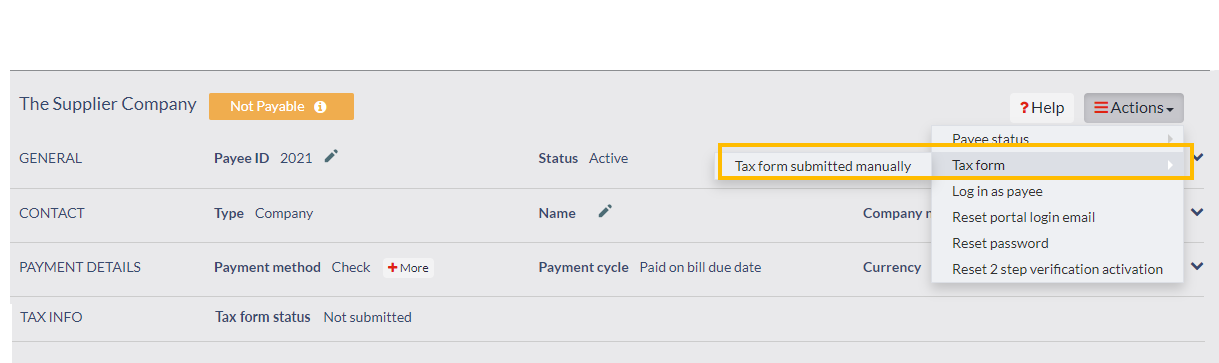
- Click "Actions" and go to Tax form > Tax form submitted manually.
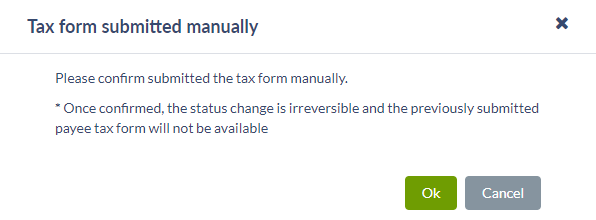
- Click "Ok" to confirm the receipt of the tax forms.
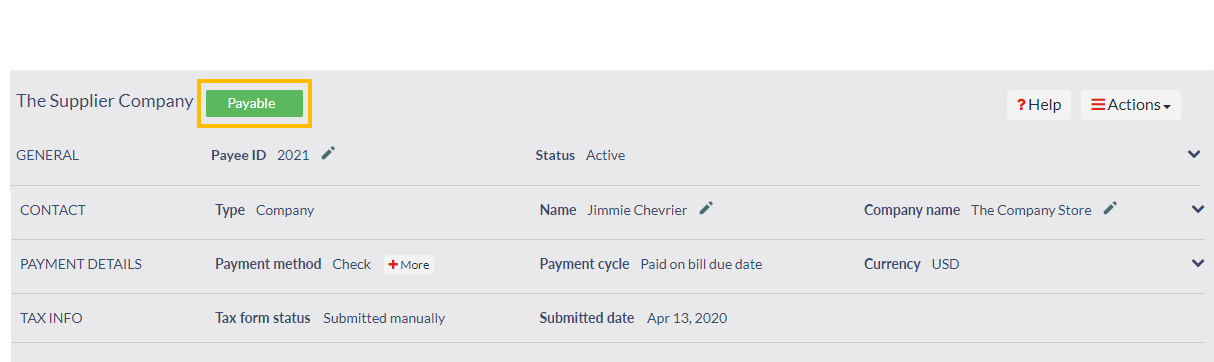
- The payee status now displays as "Payable".
Step 3. Upload bills
Create a bill without an invoice
Required user roles View Bills & Process Bills
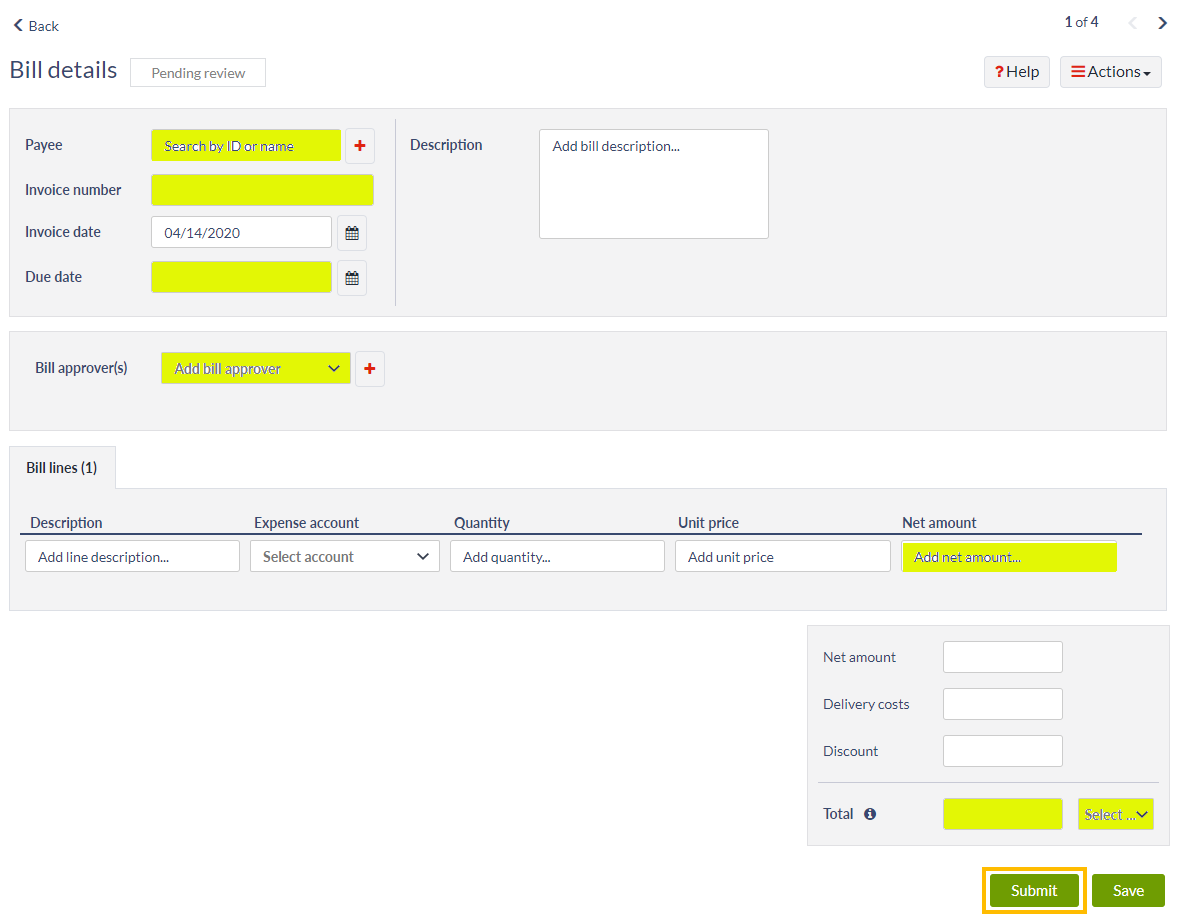
- On any Bills subtab, click "+ Add bill", then select "Create a bill without an invoice".
- On the "Bill details" screen, fill in the details of the bill. All fields highlighted in yellow are required.
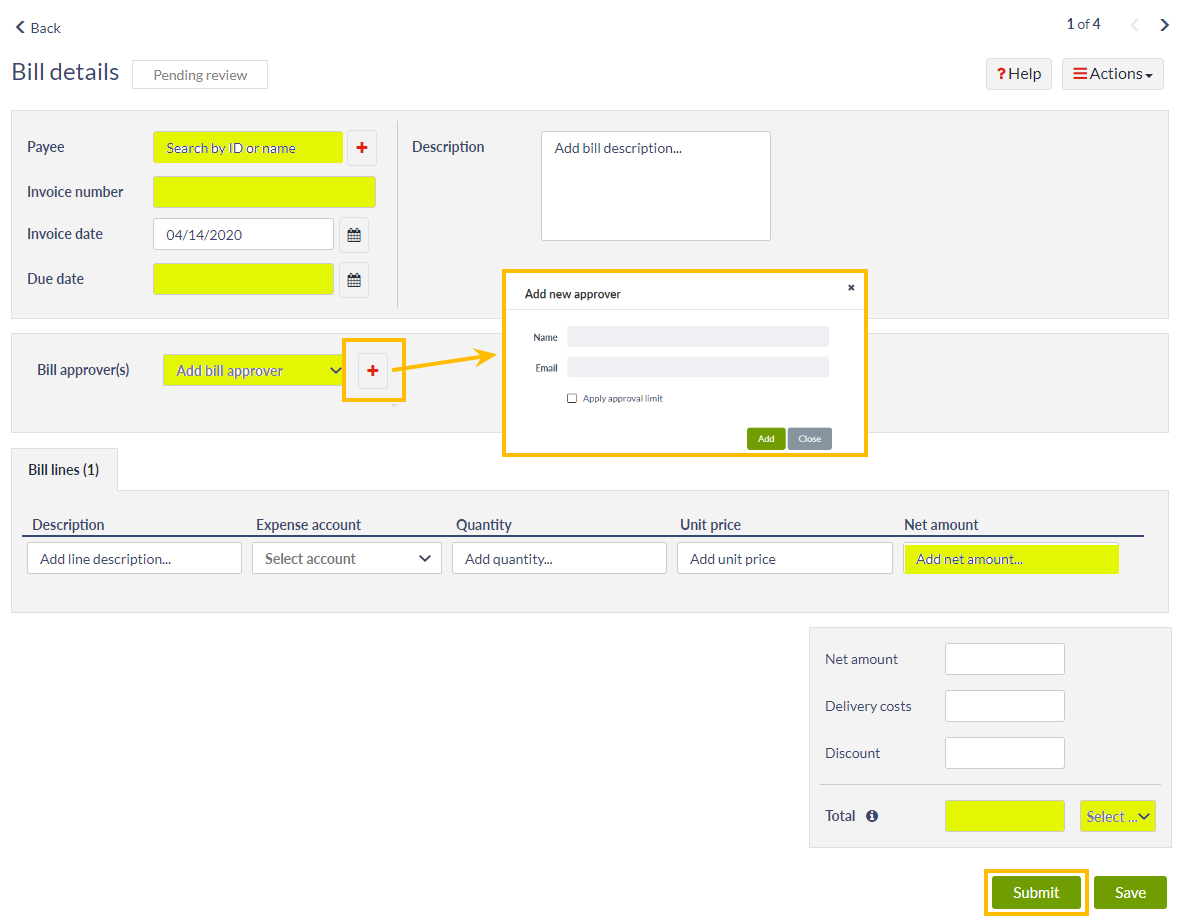
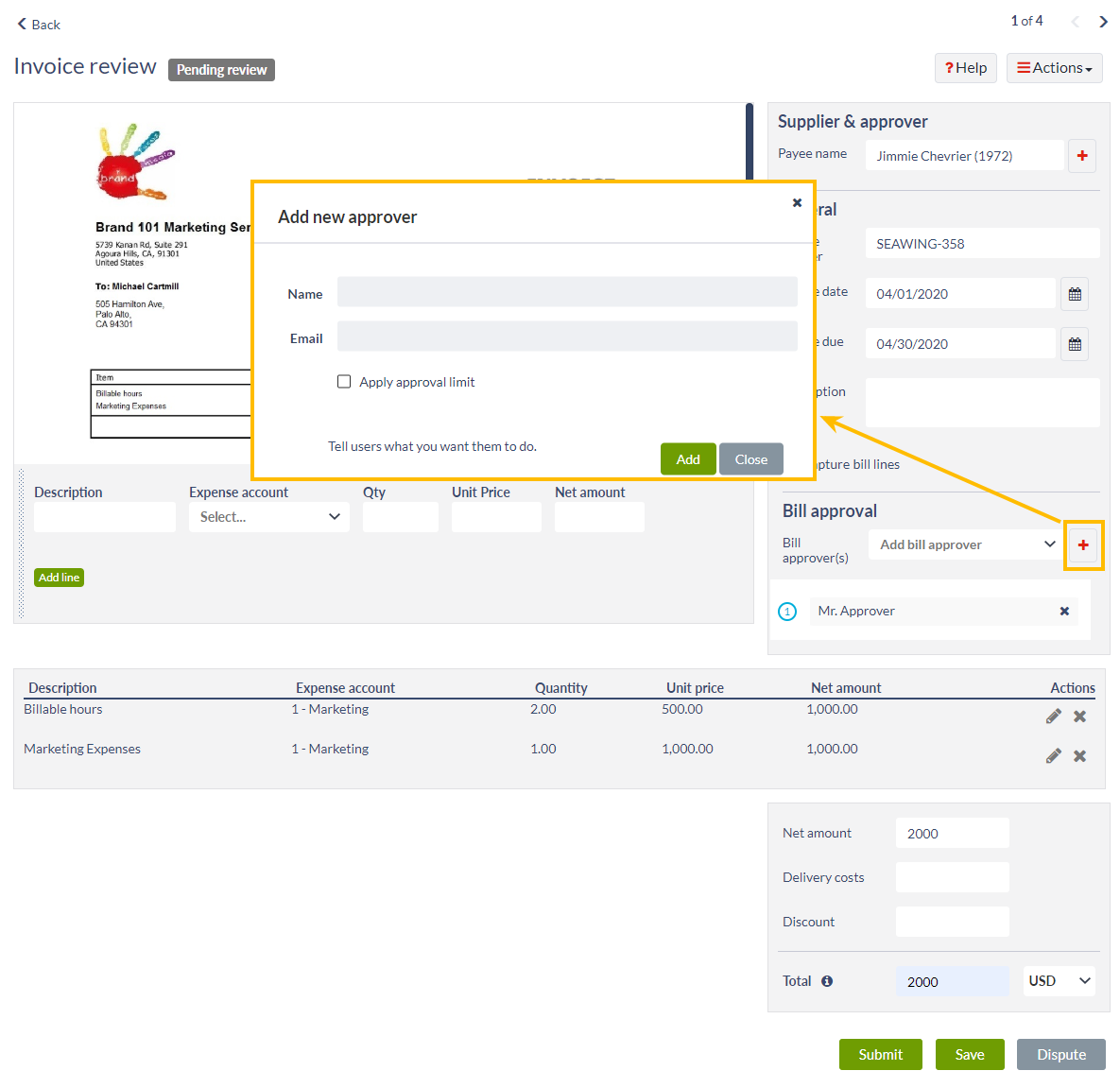
- If your process requires an approver or multiple approvers, you can select them from the "Bill approver(s)" field. If you do not see the required approvers in the dropdown list, you can add them one at a time to the system, for use in this bill and future bills, by selecting
 and filling in the appropriate information. You need the Manage Bill Approvers role to do this action. Additionally, the new approver must already be set up in the Tipalti Hub and have the Bill Approver role to be a valid entry. Once the bill is submitted for approval, the designated approvers receive an email about the bill waiting for their approval.
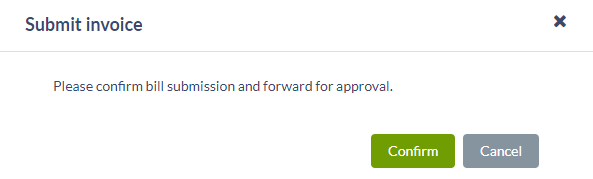
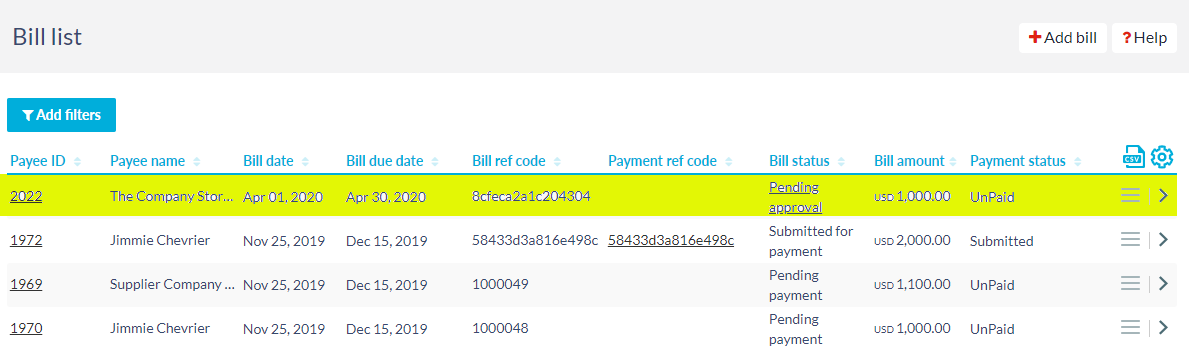
 - Click "Submit" and then "Confirm". The new bill appears on the "Pending my approval" subtab.

Upload invoices
Required user roles View Bills & Process Bills
- On any Bills subtab, click "+ Add bill", then select "Upload invoice(s)".
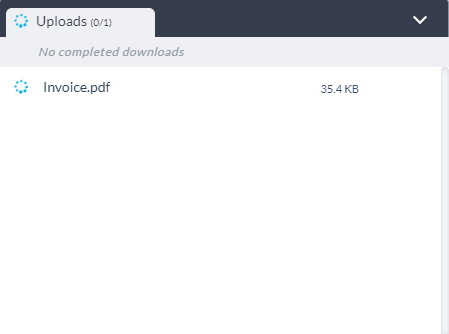
- Select the appropriate invoices to upload from your computer to see the upload progress. The supported formats are PDF, images (JPEG, JPG, BMP, PNG, TIFF), and CSV files.
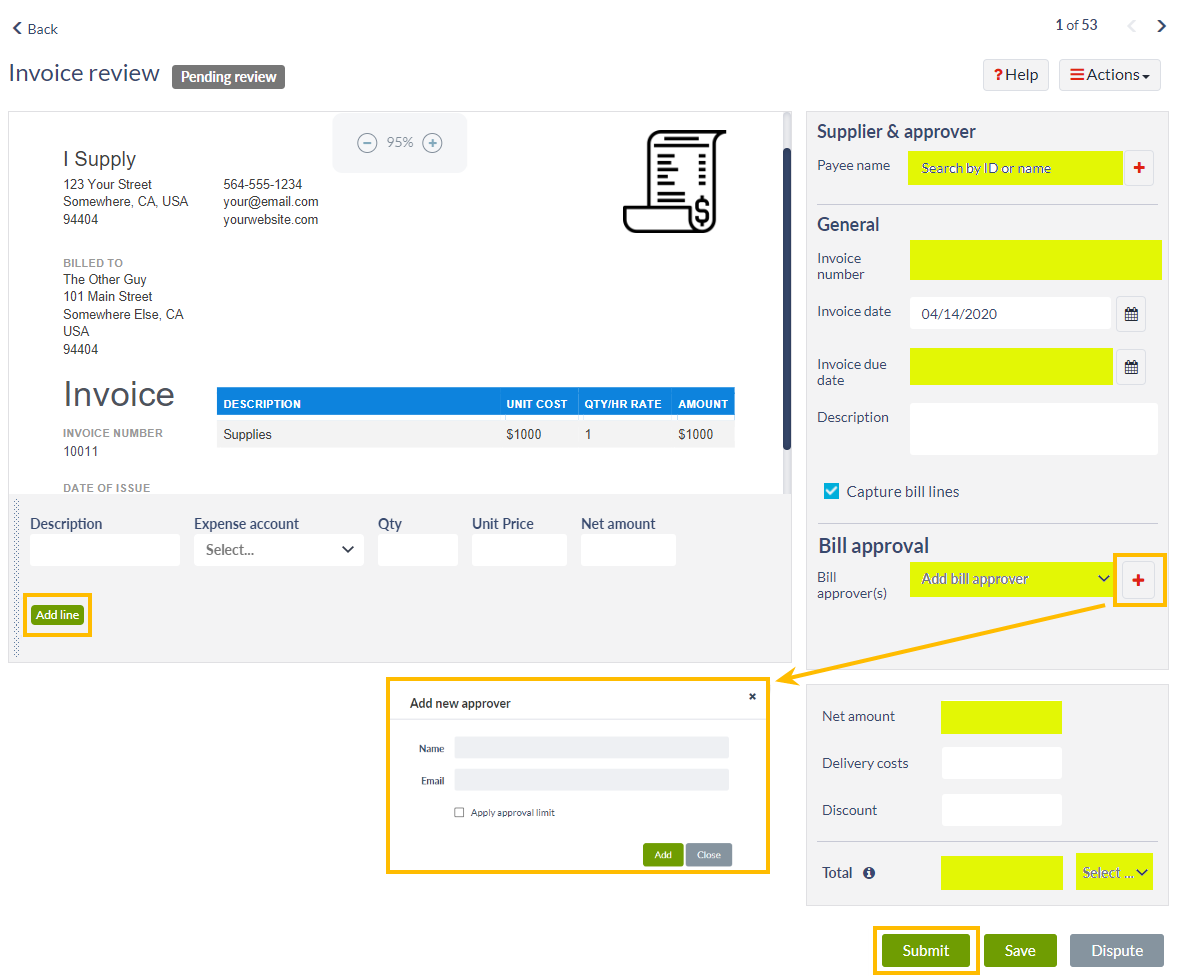
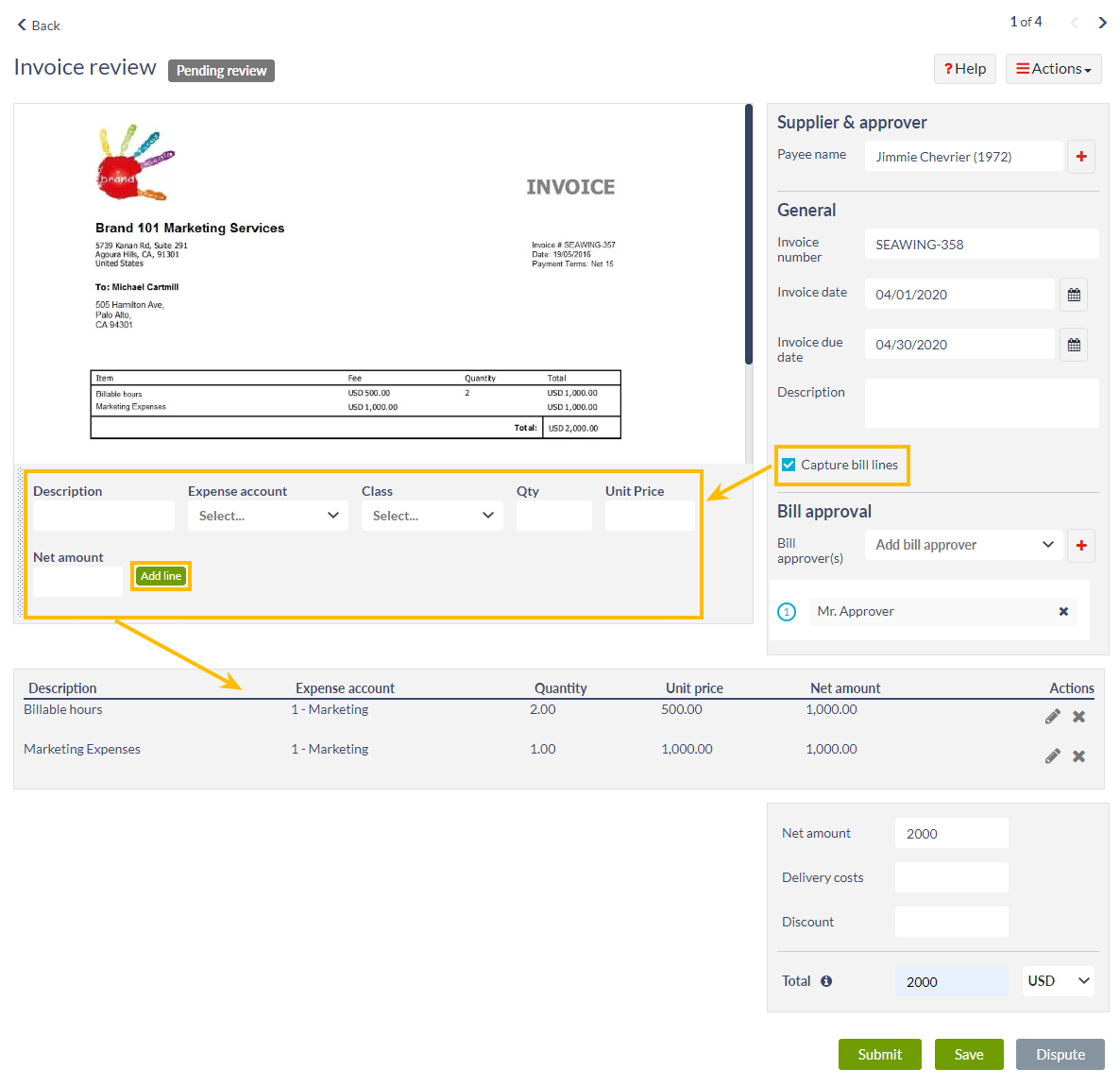
- Select the "Capture bill lines" check box to open the bill lines panel. The bill line details from the invoice are added to show a breakdown of the items. Bill lines mirror lines on the invoice and are used to allocate expenses among department, location, project, etc. (If needed, someone in your company with the Payer Administration and Technical roles can create additional custom fields on the bill header or bill line level for collecting details such as Department, Class, or Location. These custom fields display in the bill filters and reporting.) Fill in the appropriate information in each field, and select the "Add line" button to add another bill line. Continue to add lines to the bill, if needed.
- If your process requires an approver or multiple approvers, you can select them from the "Bill approver(s)" field. If you do not see the required approvers in the dropdown list, you can add them one at a time to the system, for use in this bill and future bills, by selecting and filling in the appropriate information. You need the Manage Bill Approvers role to do this action. Additionally, the new approver must already be set up in the Tipalti Hub and have the Bill Approver role to be a valid entry. Once the bill is submitted for approval, the designated approvers receive an email about the bill waiting for their approval.
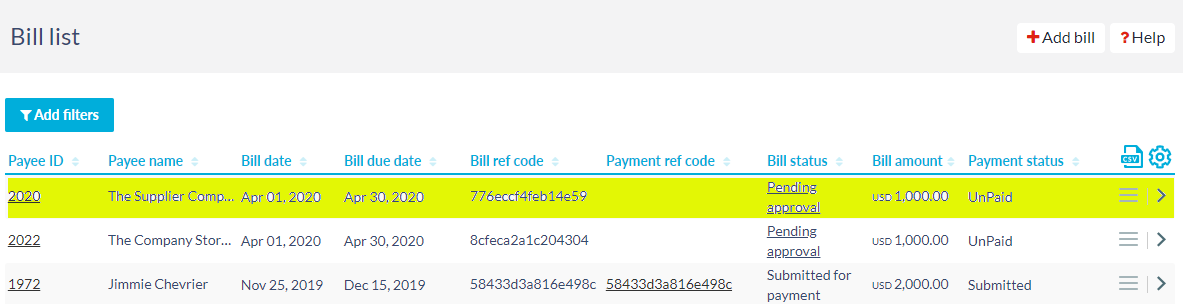
- Click "Submit" and then "Confirm" to confirm submission of the bill. The new bill appears on the "Pending my approval" subtab.

When AI Smart Scan and Managed services are enabled, invoices go through the invoice capture process and will not be available for review immediately. Depending on the complexity of the invoice, AI Smart Scan can take anywhere from a few minutes to one hour, whereas, Managed Services can take up to 48 hours.
Add invoices via email
Both you and your payees can submit invoices via email. Each email may include multiple invoices. Once the email has been sent, the email sender receives a confirmation email, which includes the invoice submission date and time, and a list of the invoices submitted. If submission is unsuccessful, the email sender is informed of the reason for failure (e.g., too large an invoice file size, invalid file format).
You can either use your own company email inbox or a Tipalti provided email inbox to collect invoices. To use your own inbox, a user with the Payer Administration role within your company needs to follow the Define email account for collecting invoices information to configure the email account.
Step 4. Review bills
Required user roles View Bills & Process Bills
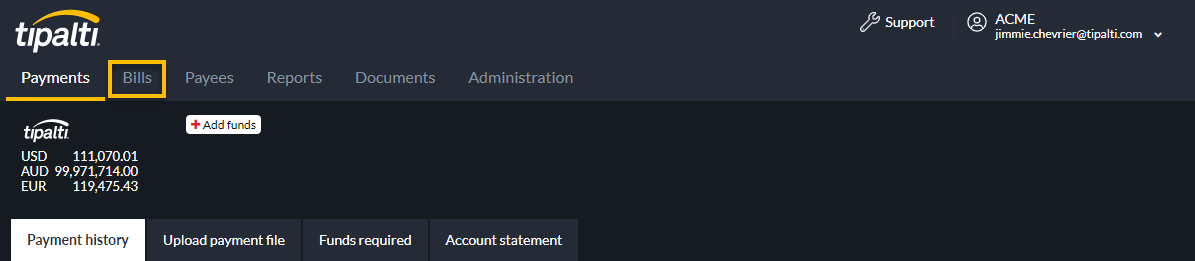
- To start reviewing bills, click the "Bills" tab.
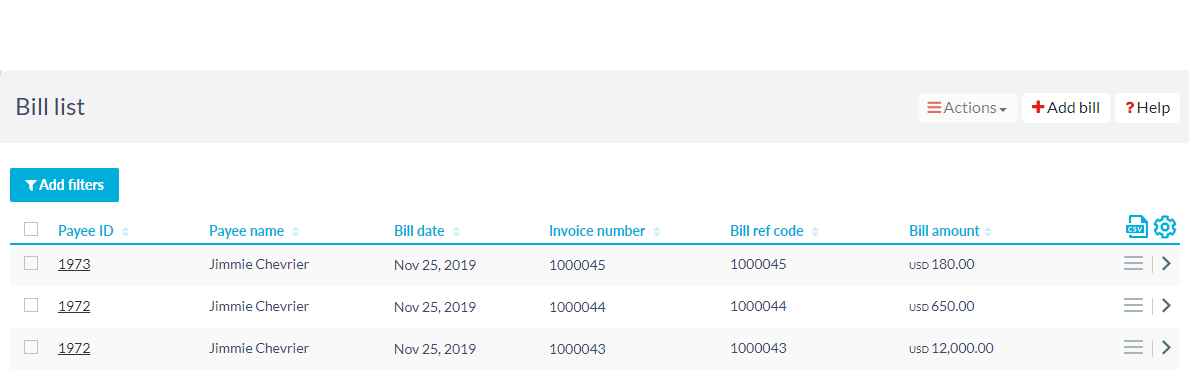
- You are taken to the "Pending review" subtab, which displays all the bills requiring review prior to submission for approval.
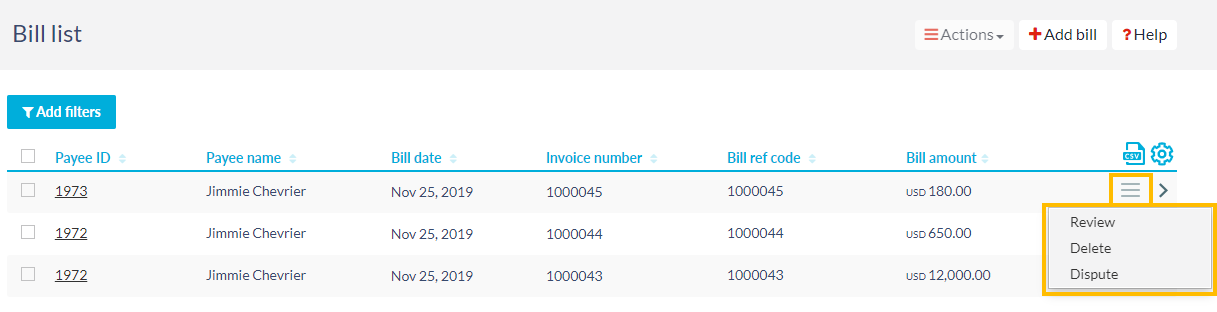
- You can either click any of the individual bill lines to open the bill for review, or you can click
 (the hamburger icon) to the right of the bill line for additional options.
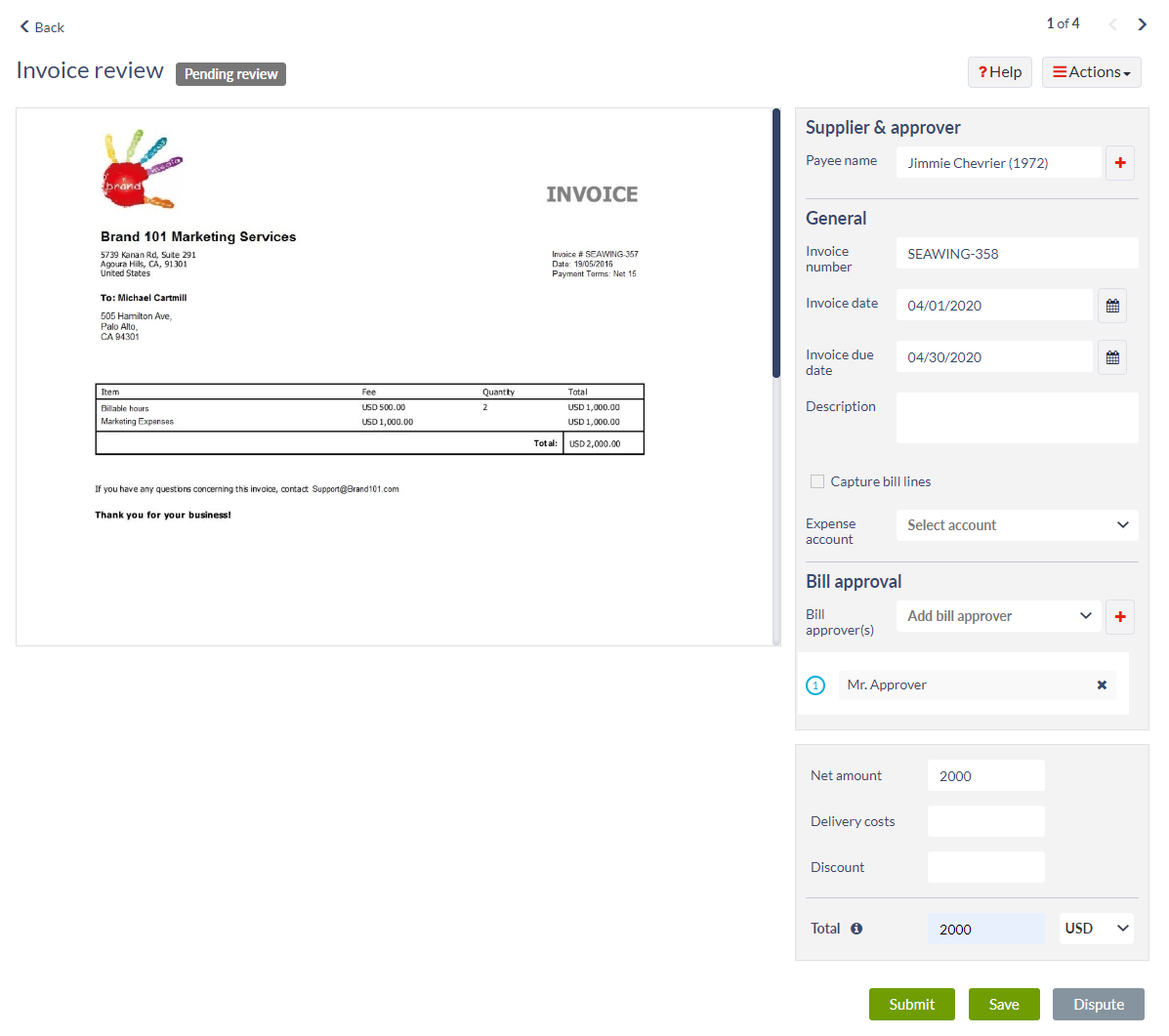
 - Upon clicking on either the individual bill line or the "Review" option, the "Invoice review" or "Bill details" screen opens. On this screen, you can review and/ or update the data captured and coding predicted by Tipalti, add an optional bill description, as well as designate the required bill approvers. Most of the information in the invoice should be pre-populated during the AI Smart Scan scan process. You can add additional details that may not have pre-populated and alter those that have.
- Select the "Capture bill lines" check box to open the bill lines panel. The bill line details from the invoice are added to show a breakdown of the items. Bill lines mirror lines on the invoice and are used to allocate expenses among department, location, project, etc. (If needed, someone in your company with the Payer Administration and Technical roles can create additional custom fields on the bill header or bill line level for collecting details such as Department, Class, or Location. These custom fields display in the bill filters and reporting.) Fill in the appropriate information in each field, and select the "Add line" button to add another bill line. Continue to add lines to the bill, if needed.
- If your process requires an approver or multiple approvers, you can select them from the "Bill approver(s)" field. If you do not see the required approvers in the dropdown list, you can add them one at a time to the system, for use in this bill and future bills, by selecting and filling in the appropriate information. You need the Manage Bill Approvers role to do this action. Additionally, the new approver must already be set up in the Tipalti Hub and have the Bill Approver role to be a valid entry. Once the bill is submitted for approval, the designated approvers receive an email about the bill waiting for their approval.
- Click "Submit" and then "Confirm". The new bill appears on the "Pending my approval" subtab.
-
The next bill in the review list appears for you to review. Follow the same steps to review the bill or click "< Back" to return to the "Bill list" screen.

Step 5. Approve bills
Required user role Bill Approver
As a bill approver for your company, you will receive email notifications for all bills requiring approval. You can approve individual bills (from the email or within the Tipalti Hub) or do a batch approval (within the Tipalti Hub), plus other bill management tasks including reviewing and disputing bills.
Approve bills via email
Within the email, you can review the bill details, approve it, send it back to AP, as well as dispute it, which alerts the payee and allow you to state a reason for the dispute.
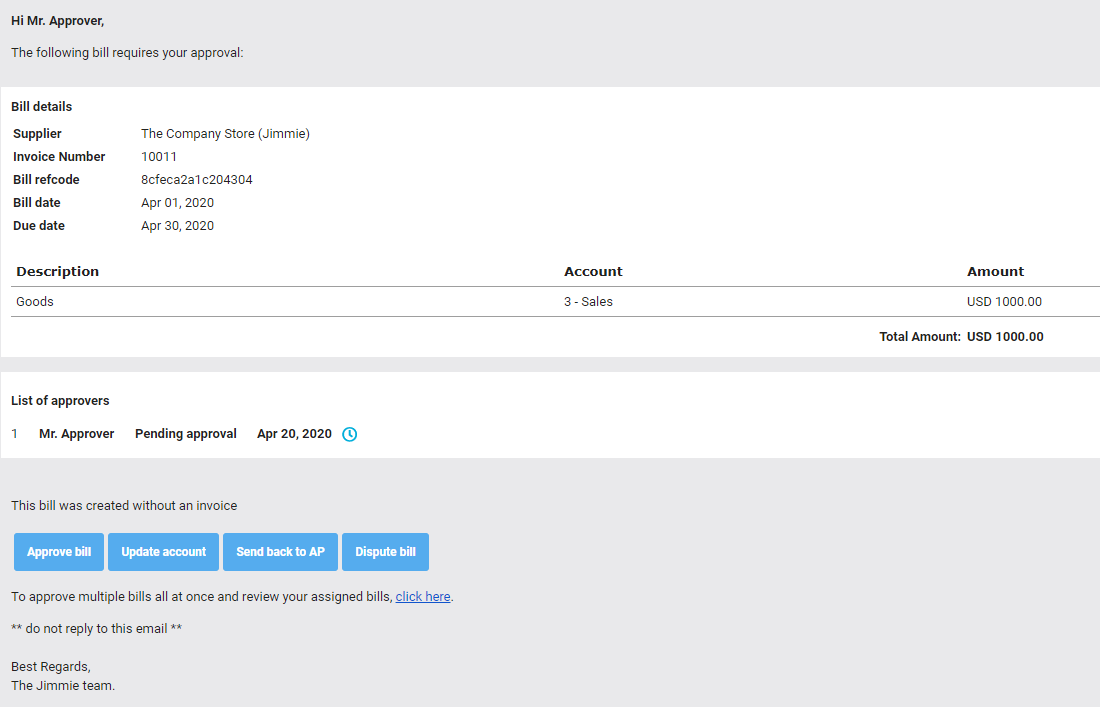
By selecting "Approve bill", you receive confirmation that bill approval was successful. Additionally, the bill then goes to the next level for approval (if more than one approval is required) or moves to the "Pending payment" subtab within the Tipalti Hub and be marked as ready for payment.

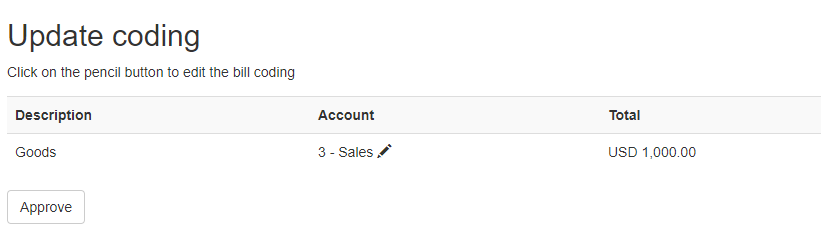
By selecting "Update account", a dialog displays allowing you to change the account type coded to the bill.
This function is not available for all users and will depend on your company's account settings.
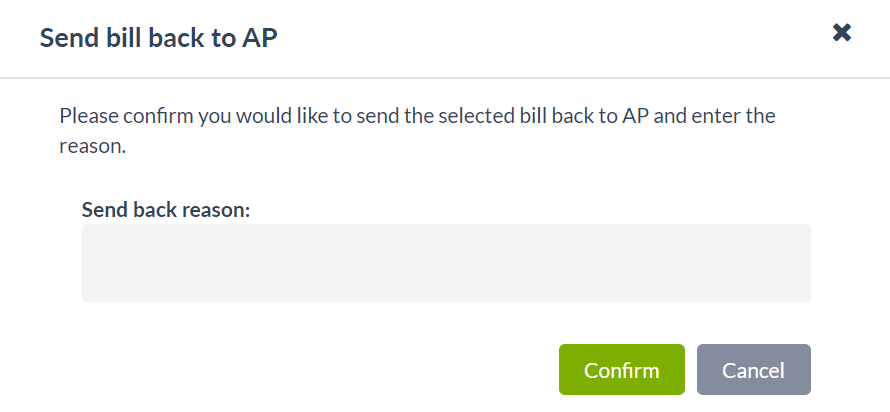
By selecting "Send back to AP", a dialog displays requesting confirmation as well as a text area to state the reason for sending the bill back. Once confirmed, the AP Team receives an email telling them the bill has been sent back.
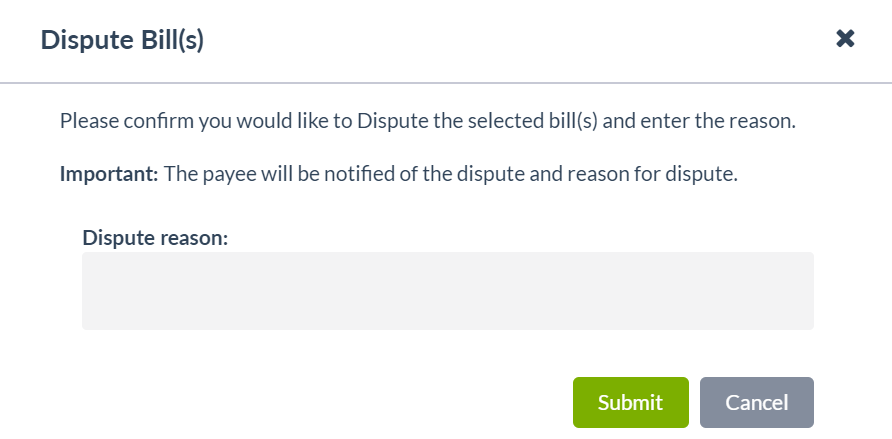
By selecting "Dispute", a dialog displays allowing you to specify a reason, to the payee, for the dispute. Once confirmed, the payee receives an email notifying them of the dispute as well as the stated reason, and the bill remains in a status of "Disputed" until resolved. This action requires the Process Bills role.
Approve bills via the Tipalti Hub
Follow the information below to learn how to approve a bill in the Tipalti Hub.
The same options to approve a bill via email are available within the Tipalti Hub (Bills > Pending my approval).
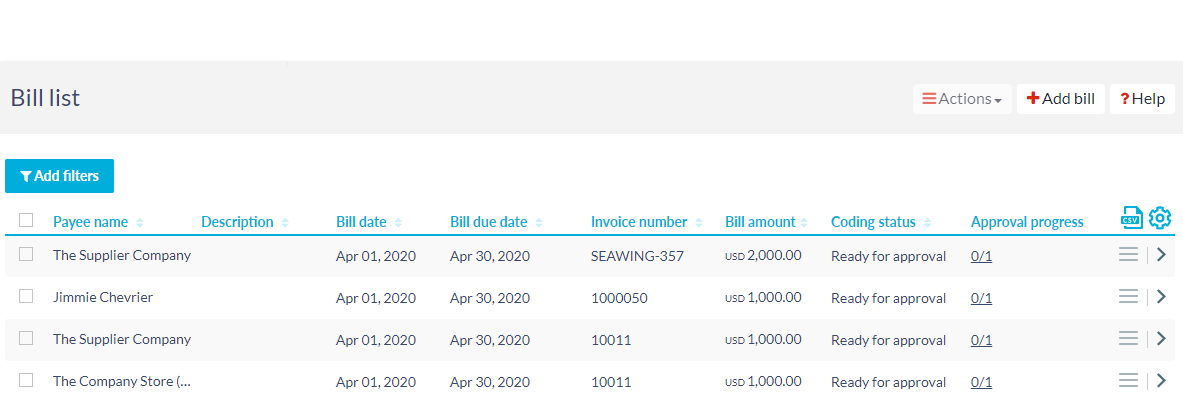
You can open the individual bill to review it by clicking the bill line, or you can use at the far right of the line to open various options.
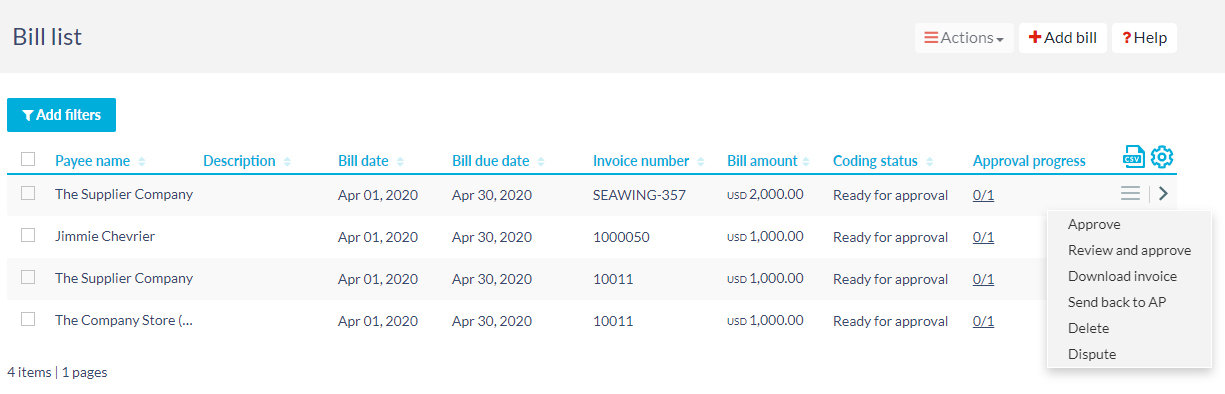
By selecting "Review and approve", the "Bill approval" screen opens for you to review the bill. You can approve the bill from here or you can approve it from the previous screen (see image above).
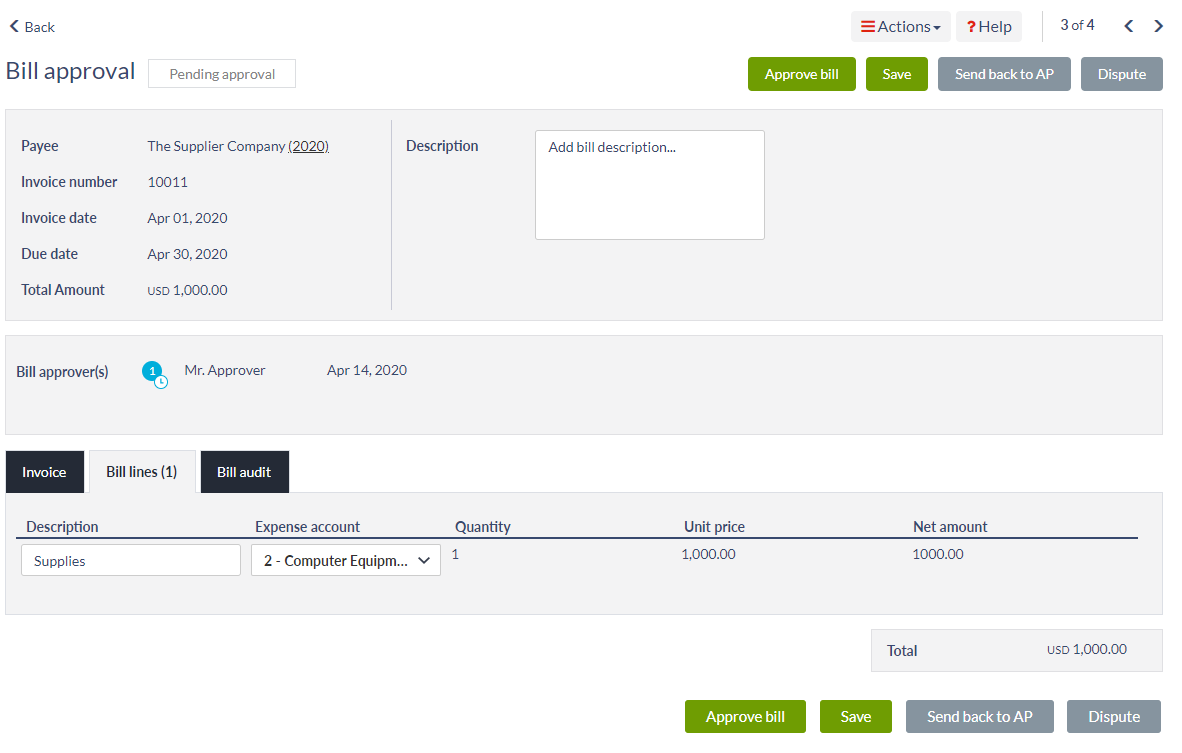
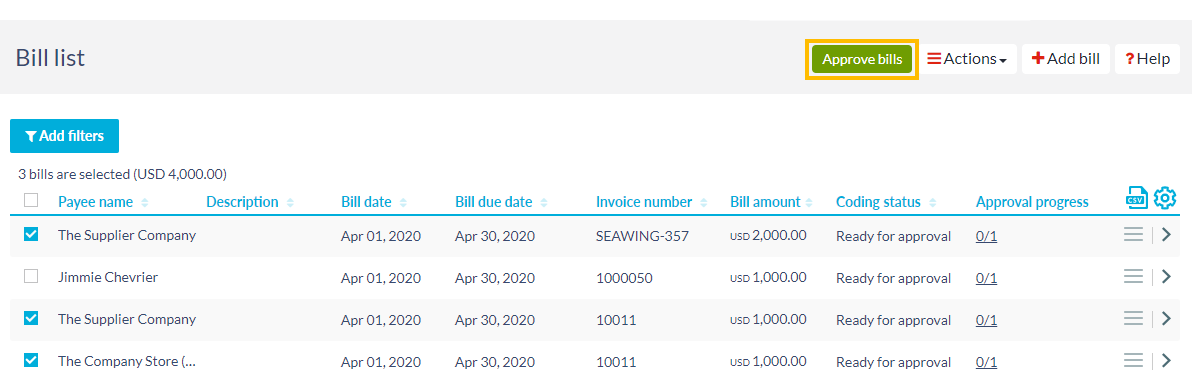
You also have the option to approve multiple bills at one time (batch approval). In the bill list, you can select any of the check boxes to the left of the individual bills you wish to approve. Once check boxes have been selected, the "Approve bills" button appears towards the top right of the page.
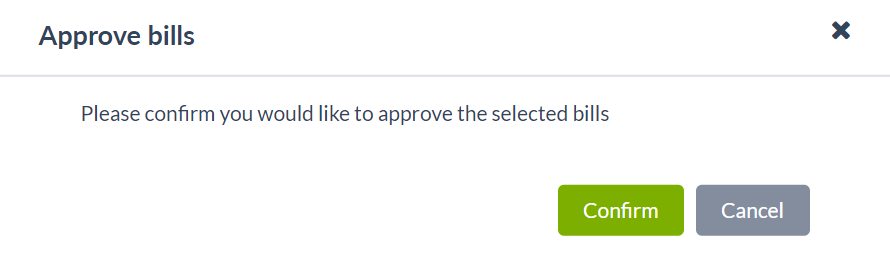
Upon selecting the "Approve bills" button, a dialog displays requesting confirmation that all the bills selected should be approved. Once confirmed, the approved bills move to the "Pending payment" subtab.
Step 6. Schedule a bill payment
Required user role Process Bills
Once a bill has been approved, it is sent to the "Pending payment" subtab within the Tipalti Hub for payment scheduling. You can schedule an individual bill to be paid, or a batch of bills.
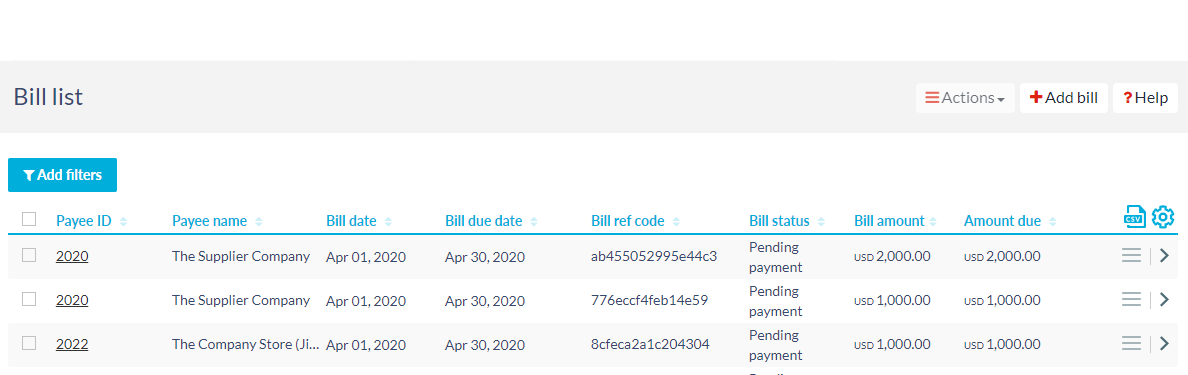
Select "Add filters" to filter down to only those bills you wish to pay. For instance:
- "Payee name" displays only those bills for that individual payee.
- "Payment country" displays bills based on the country in which the payee resides.
- "Bill due date" allows you to display bills that are due within a specified date range.
You have the option to open the individual bill to review it by clicking the bill line, or you can use at the far right of the line to open various options.
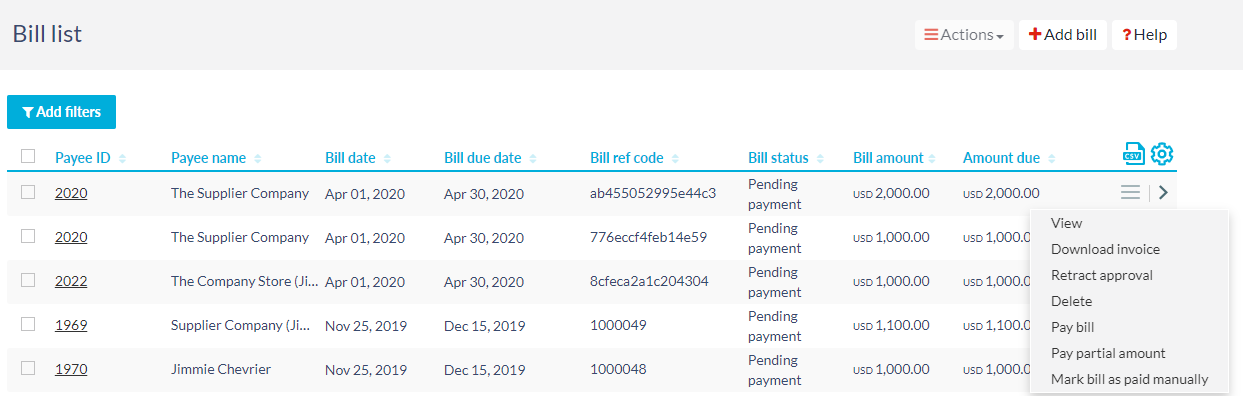
Upon selecting "Pay bill", a dialog displays requesting you to schedule the bill payment based on the payment cycle or based on a specific date.
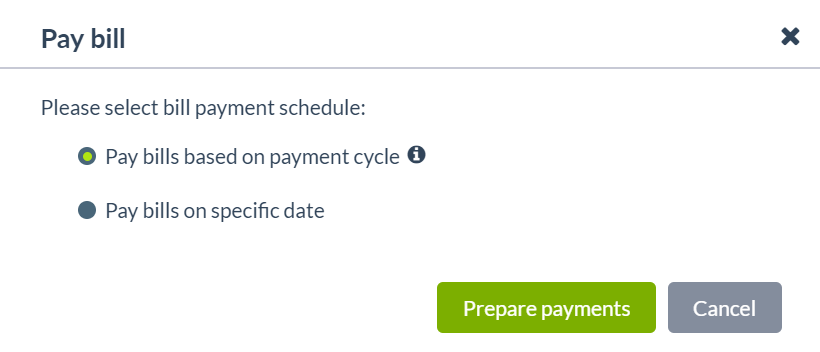
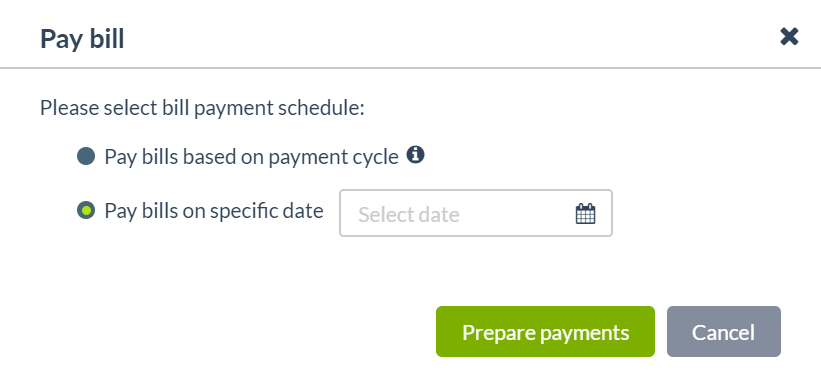
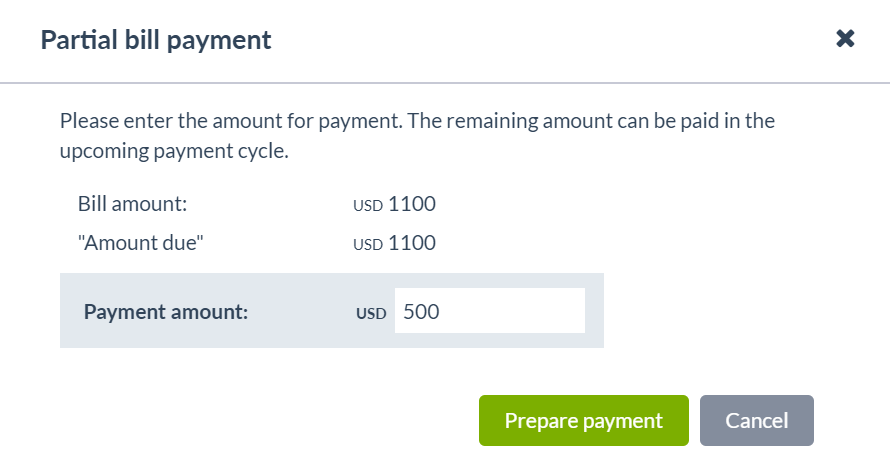
By selecting "Pay partial amount", a dialog displays for you to designate a specific portion to be paid to the payee of the bill in the next payment cycle. This function is only accessible from , can only be applied to a single invoice at a time, and does not support the ability to schedule the payment on a certain date.
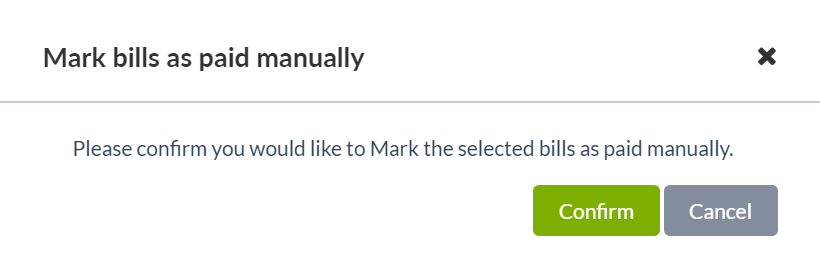
By selecting "Mark bill as paid manually", a dialog displays requesting confirmation that this bill was paid outside of Tipalti's workflow.
Tipalti recommends paying the bill prior to marking it as paid manually.
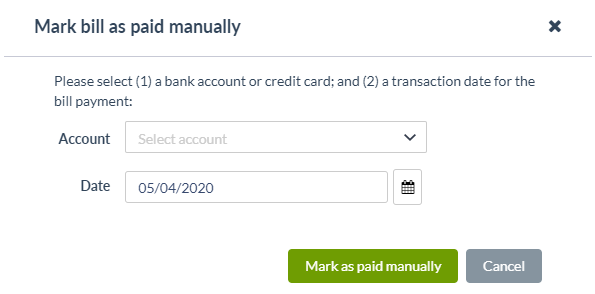
If your company is working with an ERP, a slightly different dialog displays to mark bills as paid manually. Here, you can select a bank account or credit card from which to make the payment, as well as specify a date for the payment.
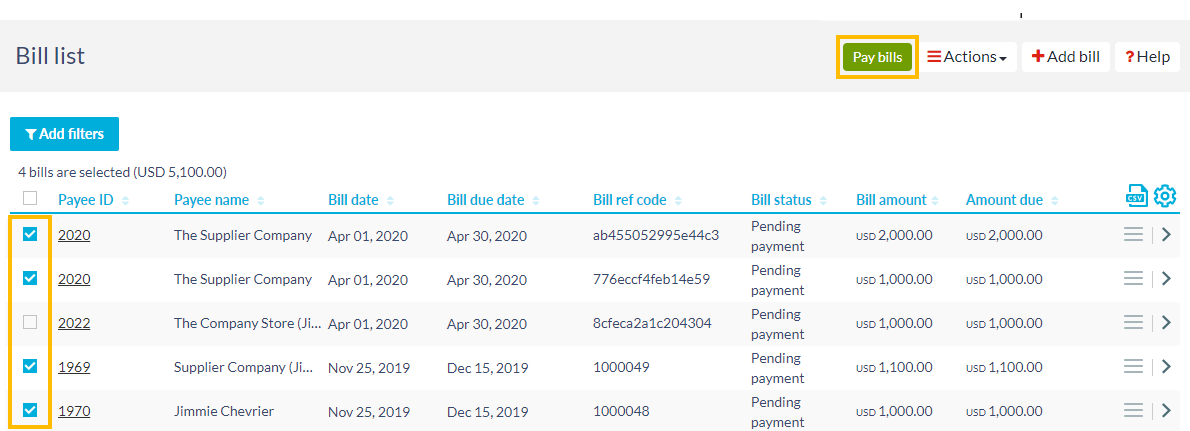
In the bill list, you can select any of the check boxes to the left of the individual bills you wish to pay. Once check boxes have been selected, the "Pay bills" button appears towards the top right of the page. Upon selecting "Pay bills", a dialog displays requesting you to schedule the payment based on the payees' payment cycle for the individual bills that were selected or based on a specific date.
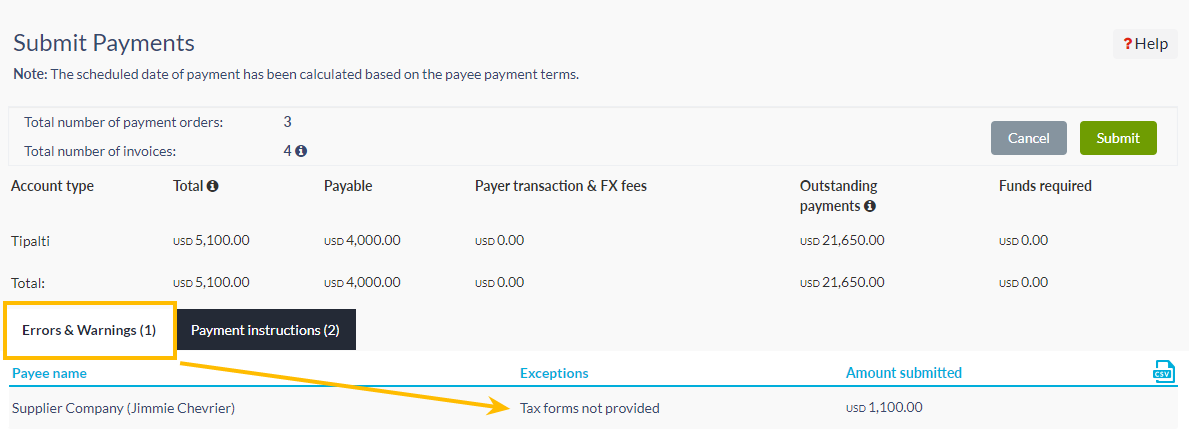
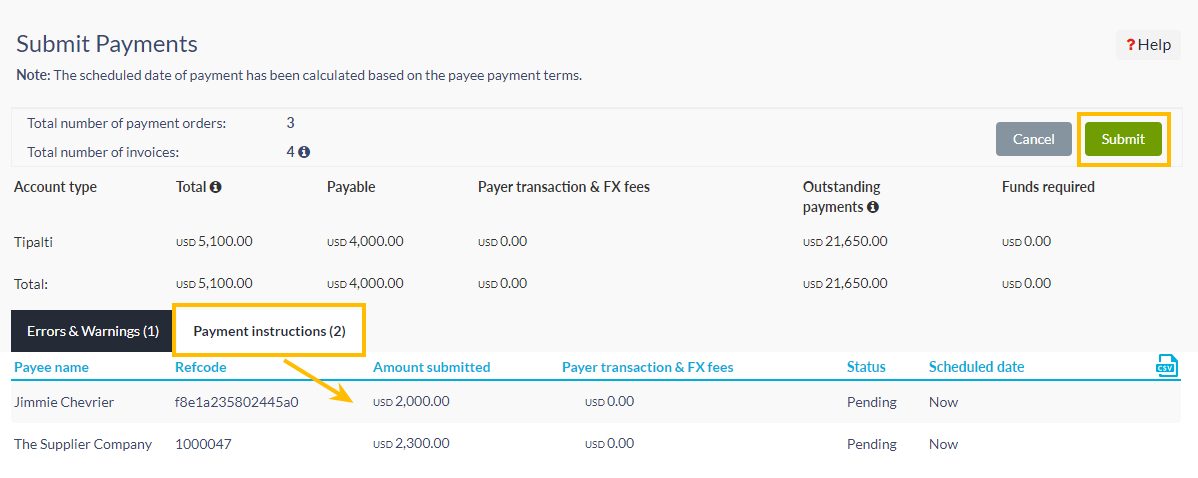
The screen refreshes to display the number of payment orders, the total amount requested to be paid, the amount payable, as well as any transaction fees and the total funds required.
If the amount payable differs from the total, there is at least one payee who cannot or will not be paid. You can review the information at the bottom of the page under the "Errors & Warnings" tab. The payee name, the reason for the exception, as well as the total amount submitted for the bill displays.
By selecting the "Payment instructions" tab, you see a list of the payments that will be scheduled upon submission.
Click "Submit" to schedule the payment. An email is sent to the payment approver to finalize the payment.
Step 7. View funds required and fund your account
In the Tipalti Hub, you can view the total amount of pending payments (including payments awaiting approval and scheduled payments) and the additional funds required, per currency, above the current account balance to cover all payments.
On the "Payments" tab, click on the "Funds required" subtab to display all scheduled payments.

When it is time to fund your Tipalti account, click "+ Add funds" to view the important funding instructions. It is crucial that you follow these instructions to ensure funds get to your account quickly, and that payments go out in a timely manner.
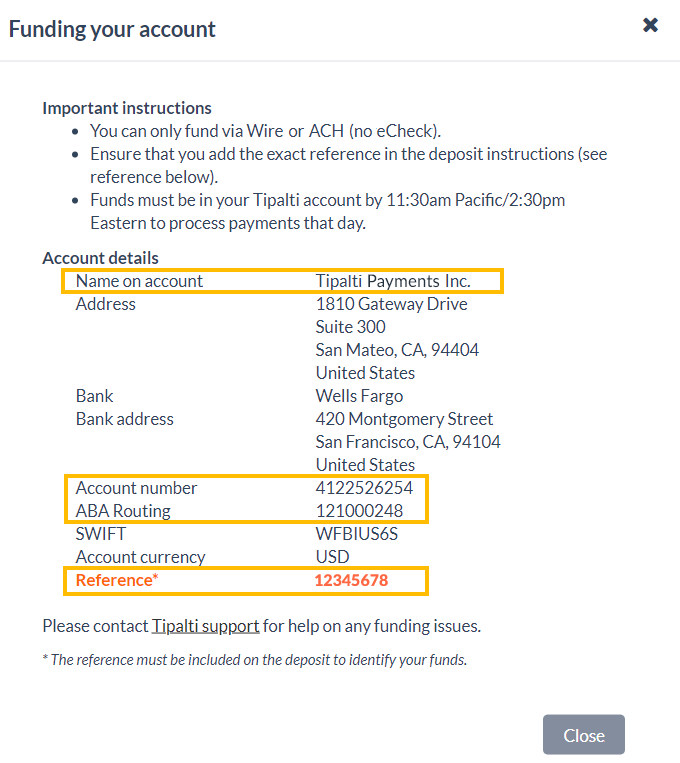
Wire transfer is the fastest method to deposit funds directly, in the currency of the destination account, to your Tipalti account. Tipalti then directs the payment to the payee's preferred account based on the chosen payment method.
An alternative to wire transfer is ACH Automated Clearing House Push Deposit functionality. This method allows only USD funding. ACH is a slower process than wire, so for urgent payments, fund via wire transfer. If your company needs to convert USD into alternate currencies in bulk, please submit a request to our Support Team for more details.
Funds must be in your Tipalti account by 11:30 a.m. Pacific/ 2:30 p.m. Eastern to process payments that same day.
Step 8. View payment status
Bills and payment orders in Tipalti are assigned progressive statuses for transparency in tracking. Statuses display in the Tipalti Hub and appear in APIs, IPNs An Instant Payment Notification (IPN) is a messaging service that enables you to receive notifications from Tipalti. IPNs are triggered when defined events occur (e.g., updating payee details)., and FTP A file transfer protocol (FTP) is a standard network protocol that you can use to transfer files to Tipalti and receive reports from Tipalti. update reports, unless otherwise indicated.
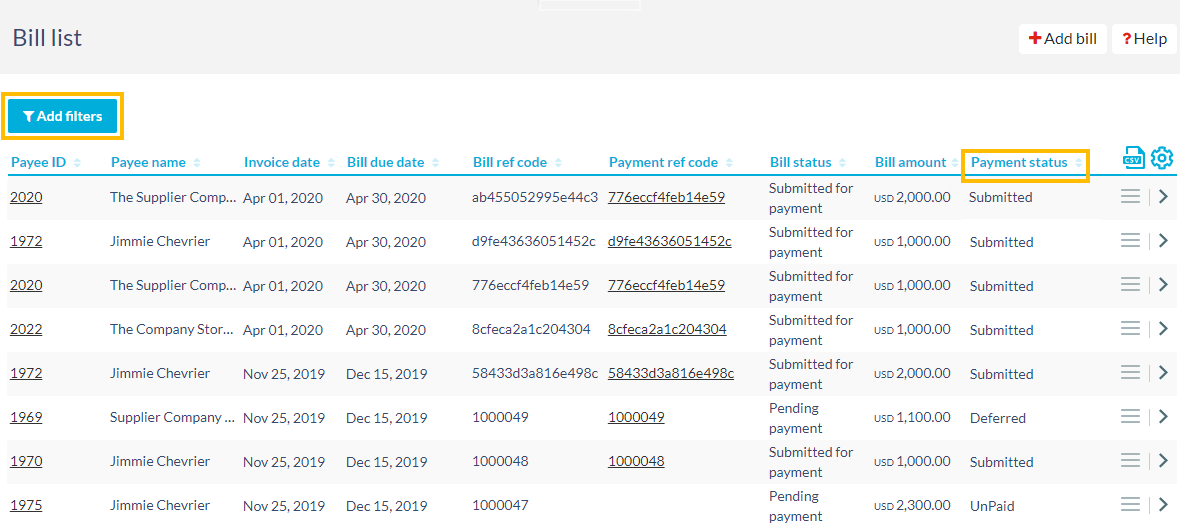
From the "All bills" subtab, you can view the status of all the payments listed in the "Payment status" column. You can also sort the view by using the arrows to the right of the column heading, or use the "Add filters" feature to sort by "Payment status".
For a complete list and description of all the statuses used by Tipalti, see Payment statuses in Tipalti's online help.